Audio Interface vs Sound Card: Which One Actually Improves Your Recordings?
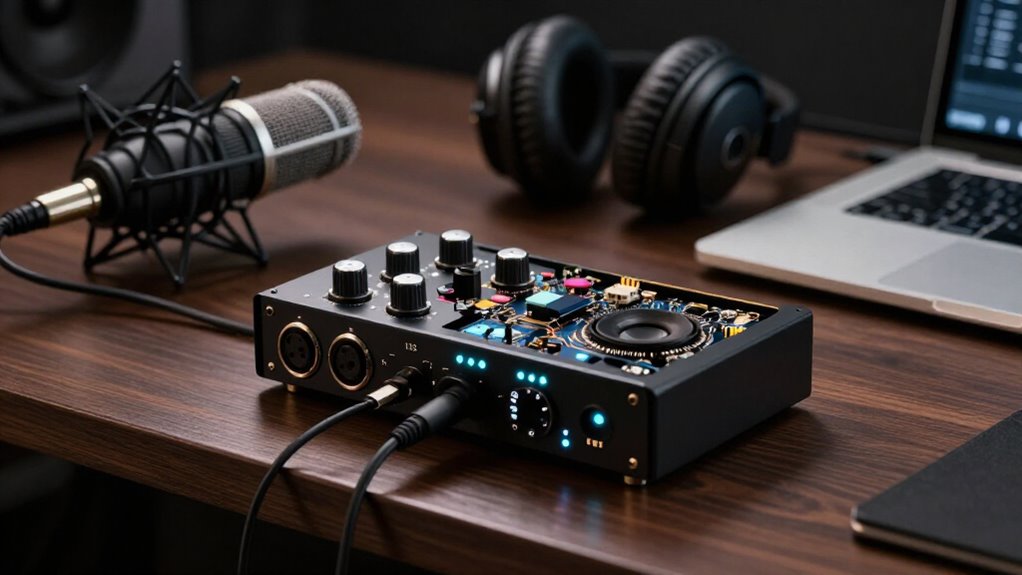
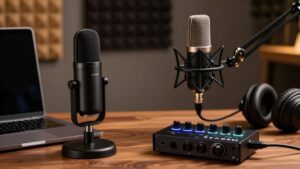
You’ll improve recordings more with an audio interface than a sound card because it gives you dedicated mic preamps, XLR and Hi-Z inputs, 48V phantom power, direct monitoring, and usually better driver control.
Choose USB for portability and computer compatibility; choose PCIe for a fixed desktop where low-latency performance matters. A sound card can handle playback or gaming, but it rarely provides the routing, gain control, and channels you need. The distinctions become clearer below.
USB vs PCIe Recording
USB and PCIe can both deliver high-quality recording, but they fit different workflows. You connect a USB interface externally, move it between compatible computers, and use it for home sessions, podcasting, or streaming. It commonly consolidates XLR microphone and instrument inputs, monitor and headphone outputs, plus direct monitoring, in one enclosure. PCIe hardware installs inside your desktop’s expansion slot; it suits a permanent studio but won’t travel and doesn’t serve most laptops.
| Connection | Installation | Best fit |
|---|---|---|
| USB | External | Portable, simple setups |
| PCIe | Internal slot | Fixed desktop studios |
| Either | Compatible system | High-quality recording |
Choose USB when you need flexible computer changes and integrated I/O. Choose PCIe only when your desktop has an available slot and your recording location remains fixed throughout your regular production work.
Preamps, Drivers, and Conversion
Preamps, drivers, and converters determine how cleanly an interface captures sound and how reliably it works with your computer. A preamp lifts your mic’s −60 to −40 dB output to recording level; gain and self-noise shape quiet sources.
- Picture a whispered vocal: adequate clean gain keeps it above the noise floor.
- On Windows, Scarlett drivers can run very low buffers, whereas a UMC22 may require ASIO4ALL and perform less consistently.
- Think of converters as a calibrated bridge: 24-bit, 192 kHz capability preserves analog detail, but higher rates raise CPU load and file size.
Interfaces usually outperform built-in cards, though you may not hear the difference. That advantage is measurable, but your microphone, room, and monitoring chain may mask the audible difference for many users.
Loopback Recording Reliability
Loopback routes your computer’s playback, such as game audio, a browser, or music software, into a recording or streaming application without an external cable. A dedicated interface can provide more dependable loopback than a sound card, but it isn’t universal. Before buying, verify the model exposes loopback as an input your recording software can use.
Reliability depends on driver behavior and the manufacturer’s routing software, not hardware alone. Confirm your game, browser, or music application appears at the recording input and remains stable during use. Direct monitoring doesn’t replace loopback: it lets you hear a microphone or instrument with minimal latency, whereas loopback records computer playback.
Make a test recording before streaming. Check that it captures the intended audio, excludes unwanted sources, and doesn’t create duplicate audio.
Setup Steps and Routing Complexity
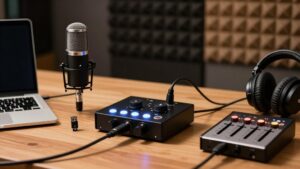
Once you’ve confirmed loopback behavior, setup comes down to assigning each source and destination correctly. Connect your USB or Thunderbolt interface directly, then select it for input and output in your DAW or streaming app. Match each source to its correct input:
- Plug an XLR microphone into a mic input for vocal capture.
- Send guitar or bass through a Hi-Z instrument input; connect keyboards to line inputs.
- Feed monitors from speaker outputs, headphones from the headphone jack.
Use monitor control to set listening level. For tracking, enable direct monitoring to send input straight to headphones, avoiding computer delay. A USB microphone is simpler because its converter is integrated. An interface needs more routing, but you can manage multiple sources, monitor feeds, and headphones independently.
Class-Compliant macOS Support
Class-compliant audio interfaces use macOS’s built-in Core Audio support, so you can often connect the device and select it in Audio MIDI Setup, a DAW, or a streaming application without installing a separate driver. That convenience reduces initial configuration, but it doesn’t guarantee full access to manufacturer-specific functions. Routing matrices, mixer controls, channel selection, gain adjustment, and firmware updates may still require companion software.
For example, Scarlett 2i2 4th Gen works on Macs, while Focusrite Control 2 manages those extended controls and updates. The bus-powered Audient iD4 MkII also supports macOS, but you must confirm that your computer meets its USB 3.0 requirement. Before buying, check the manufacturer’s current compatibility page for your macOS version; class-compliant audio and optional software support vary by model.
Resale Value and Driver Lifespan
A standalone audio interface can retain stronger resale appeal than a built-in sound card because its XLR, instrument, headphone, and monitor connections remain useful across recording, streaming, and playback setups. Buyers can repurpose adaptable hardware, so features matter more than a single-purpose design:
- A front-panel XLR input, phantom power, and instrument jack invite microphone and guitar work.
- Multiple inputs and direct monitoring broaden practical workflows.
- A dedicated monitor knob and headphone output fit changing desks.
Before you buy, inspect the manufacturer’s OS compatibility pages and update history. Older units might operate through class-compliant or third-party drivers, yet support and low-latency results vary by computer and operating system. Don’t assume a lifespan or price: compare current used listings and model-specific support details before purchase decisions.
Shared IRQs can contribute to audio dropouts when a sound card or interface must compete with a busy network or graphics controller for CPU attention. An IRQ lets devices signal that they need service; when several devices share one interrupt, a controller can delay processing. Those delays may produce clicks, pops, or underruns. However, shared IRQs aren’t faulty: modern operating systems handle sharing, and driver quality, buffer size, and system load affect stability.
In Windows Device Manager, you can inspect Resources by type to identify IRQ assignments. If you suspect a conflict, update chipset, graphics, network, and audio drivers. For an card, moving it to another PCIe slot may change routing. USB and Thunderbolt interfaces can still glitch; use reliable drivers, ports, and buffers.
Phantom Power and Portability
If you use an XLR condenser microphone, you need 48V phantom power, which built-in sound cards typically don’t provide. A portable interface such as the M•Caster Live supplies phantom power, while USB bus-powered models reduce the gear you carry. Before traveling, check its USB and power requirements; for example, the Audient iD4 MkII performs best through USB 3.0.
Phantom Power Explained
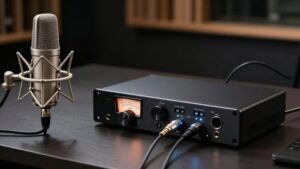
Phantom power delivers the voltage many condenser microphones require through an interface’s XLR input, usually as 48V. You should verify that your microphone requires 48V before enabling it; dynamic microphones generally don’t need this supply. The interface sends DC voltage along the balanced XLR cable while preserving the audio signal.
- Picture a condenser capsule receiving its operating bias through the same cable carrying your voice.
- Treat the 48V switch as an input-specific tool, not a recording-quality rating.
- Compare preamp noise, gain range, and converter performance to judge the captured result.
USB microphones include conversion internally, whereas an XLR microphone and interface separate components. That modular path lets you select a compatible condenser and apply phantom power only when its circuitry requires it for operation.
Portability and Power Options
Portability depends on both an interface’s physical size and how it receives power: bus-powered USB models can travel with a laptop without a separate adapter, while larger units may need external power.
Before you choose, verify the computer connection and current draw. The Audient iD4 MkII is bus-powered, but USB 3.0 provides its best performance. If you record condensers, confirm that the unit supplies switchable 48V phantom power through its XLR input; the M•Caster Live does. A Mackie Onyx Artist 1×2 keeps a mobile rig simple with one XLR input.
For streaming away from your desk, M•Caster Live also adds Bluetooth. You’ll trade expansion, input count, and sometimes power independence for smaller dimensions, so match the interface to your microphone, laptop, and travel workflow.
Surround Gaming or Podcasting
For surround gaming, verify that your hardware and software explicitly support your target surround format and speaker layout. For podcasting, prioritize XLR preamps, direct monitoring, and enough inputs to capture multiple voices simultaneously. Match the device to your workflow: a basic USB sound card can handle casual gaming, while an interface supports controlled recording and hands-on gain adjustment.
Surround Sound for Gaming
Gaming and podcasting benefit from an audio interface when you need cleaner microphone capture, direct monitoring, and dedicated headphone or speaker connections. For surround gaming, don’t assume an interface’s output count creates multichannel playback. You must verify that both the interface and your headphones, receiver, or speaker system explicitly support your target surround format.
- A rear footstep should reach the correct channel, not collapse into stereo.
- Direct monitoring routes your voice to headphones before computer processing, minimizing live commentary delay.
- Dedicated outputs give you controlled connections for headphones or powered monitors.
Most interfaces emphasize stereo-style monitoring, so their listed outputs don’t prove surround capability. Use documented format support and compatible playback hardware to preserve positional cues in the game world during fast competitive matches.
Podcasting Recording Priorities
Podcasting shifts the priority from multichannel playback to reliable voice capture, so choose an interface with clean microphone preamps, XLR inputs, and enough independent channels for every host and guest. Those features let you use dynamic or condenser microphones and capture speech with low noise. Record each participant simultaneously on a separate input, rather than combining voices before recording; this preserves control over levels and edits. Use direct monitoring so speakers hear themselves without latency from computer processing. Separate headphone and speaker outputs, plus physical level controls, let you set cue and room volume quickly during sessions. Record at 24-bit depth for practical headroom and level management.
You don’t need 192 kHz: it increases storage demands and CPU load without improving spoken-word production.
Match Hardware to Workflow
Your workflow should determine the hardware: surround gaming demands support for your headset or speaker format and any required gaming-specific surround processing, while podcasting prioritizes XLR inputs, clean mic preamps, gain control, and enough simultaneous channels for each speaker.
- For gaming, verify channel compatibility before buying; an interface usually handles recording and monitoring rather than virtual surround.
- For a solo show, a USB microphone can work; choose an interface when expansion matters.
- Picture each host at a separate XLR input, with direct monitoring in headphones and speakers connected for playback.
Confirm quarter-inch instrument inputs only if you’ll record music. Direct monitoring bypasses computer latency, so you can hear natural speech during conversation. Select outputs that connect cleanly to your headphones and studio monitors too.
Choose Direct Monitoring for Vocals
For vocal recording or livestreams, choose an audio interface with direct monitoring so you can hear your microphone through headphones without sending the signal through the computer first. That hardware path bypasses software buffering, reducing the latency that separates your voice from its headphone return. Lower delay helps you maintain pitch, phrasing, and placement rather than reacting to an echo.
This matters most when tracking vocals or broadcasting live, because delayed monitoring can interrupt delivery and you can’t repair mistakes afterward. Direct monitoring also lets the interface handle real-time listening instead of adding computer-processing load. Before buying, inspect headphone-monitoring design. Prefer controls that set the input-monitor level independently from playback, so you can balance your voice against tracks or system audio without changing gain.
Conclusion
Your recordings improve when you choose the device that matches your signal path, not the label. You’ll usually get cleaner microphone gain, phantom power, direct monitoring, and simpler routing from a USB audio interface. Choose PCIe when you need low-latency expansion, stable high-channel-count operation, or surround playback. On macOS, class-compliant interfaces reduce driver friction. Verify loopback behavior, driver quality, and IRQ stability before buying, because conversion specs alone won’t consistently prevent dropouts or workflow problems.