Can’t Hear Your Guitar Through Your Audio Interface? Fixes for Monitoring and Routing
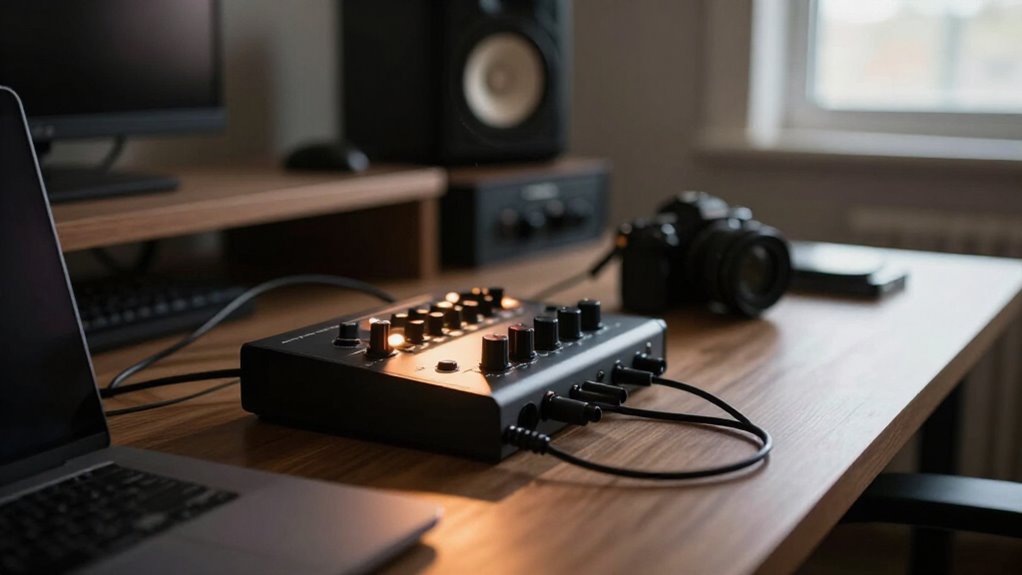
If your guitar’s silent, start by checking Guitar Rig’s input routing and confirm the right channel’s active, then verify your interface’s output channels match your headphones or monitors.
Choose direct monitoring for zero-latency dry signal or software monitoring to hear effects, and raise gain gradually while watching input meters.
On Mac, grant microphone permission to the right app. Skip phantom power for passive guitars.
Still stuck? The next steps below will walk you through each fix in detail.
Check Guitar Rig Routing
Start by confirming that Guitar Rig receives your guitar on the correct interface channel. In Guitar Rig 6’s standalone application, open File > Preferences > Audio, choose your interface, select the connected source under Inputs, and enable its matching L or R button. In Guitar Rig 5, open File > Audio and MIDI Settings > Audio > Routing > Inputs, then assign the interface input to Guitar Rig’s input and activate the matching L or R side. Play normally and watch the header’s input meter. If it remains still, recheck the selected channel and increase your interface input gain and Guitar Rig’s input level gradually. If the meter moves but monitoring remains silent, disable Tuner Mute and raise Volume, Dry, Wet, and Master Volume.
Select Interface Output Channels
Next, set Guitar Rig’s output to the interface channels that feed your headphones or speakers. In the standalone application, open its audio settings and assign the correct physical output pair. In Guitar Rig 6, go to Preferences > Audio > Outputs. In Guitar Rig 5, use Audio & MIDI Settings > Routing > Outputs. Select the channels your monitoring system receives, then confirm the assignment rather than relying on default routing.
If you’re running Guitar Rig inside a DAW, configure the plug-in or track output to those same interface channels. Play your guitar and watch Guitar Rig’s output meter. Meter activity confirms that processed audio is leaving Guitar Rig. If the meter moves but you still hear nothing, recheck the selected output channels and raise the interface playback volume.
Headphone Jack vs Main Outs
Use the interface’s headphone jack when you’re monitoring with headphones, and use its main outputs for powered speakers or studio monitors. Plug headphones directly into that headphone jack; the main outputs serve line-level speaker connections and may require adapters that still don’t deliver an appropriate headphone-level signal.
If your interface provides separate headphone and main-output level controls, raise the control for the listening path you’re actually using. In standalone Guitar Rig, choose the interface outputs connected to your headphones or speakers. In a DAW, route the guitar track to that same output pair. If meters move but you hear nothing, verify the selected pair, its volume setting, and every headphone or speaker connection. Then check cables, speaker power, and plug seating before changing settings first.
Direct vs. Software Monitoring
Use direct monitoring when you need near-zero-latency guitar in your interface headphones, but expect a dry signal. Switch to software monitoring when you need Guitar Rig or DAW amp and effects processing, then use ASIO and adjust the buffer to control delay. Choose the mode that matches your test: direct monitoring isolates interface routing, while software monitoring verifies your computer and plugin path.
Understanding Direct Monitoring
Direct monitoring sends your guitar signal straight from the interface input to its headphone or speaker outputs, so you hear yourself with near-zero latency and without waiting for the computer to process audio. Enable it through the interface’s Direct Monitor switch, knob, or control-panel mixer. Raise headphone or monitor level, confirm input shows signal.
If meters move but you hear nothing, verify that the direct-monitor source feeds the outputs you’re using. On interfaces with a blend control, turn it toward Input instead of Playback. This path is reliable for tracking dry guitar because it bypasses driver, buffer, and DAW routing problems. It won’t include amp simulations or effects running on your computer. To hear PC audio with guitar, select interface as computer audio output.
Using Software Monitoring
Software monitoring routes your guitar through the computer before it reaches the interface’s headphones or speakers, letting you hear amp simulations, pedals, and other DAW effects in real time. Enable input monitoring on the guitar track, then load your amp simulator and confirm that the track’s input is your interface instrument channel. Set the interface as the computer’s audio output so its headphone jack receives DAW playback as well as the processed guitar signal.
If the tone arrives late, reduce the DAW buffer size. On Windows, select the interface’s ASIO driver rather than a generic system driver. Test progressively smaller buffers while playing: lower settings cut delay, but raise CPU demand and may produce clicks, pops, or dropouts. Match DAW and interface sample rates.
Choosing the Right Mode
Your monitoring choice depends on whether you need the computer to process the guitar signal. Use direct monitoring when you want dry guitar in your headphones or speakers. The interface routes input to outputs, avoiding the computer round trip and delivering near-zero latency. To play with a lesson or metronome, select the interface as your computer’s audio output; its headphone jack can combine computer audio with the directly monitored guitar.
Choose software monitoring when you need Guitar Rig, a DAW amp sim, or other plug-in effects. Direct monitoring bypasses them.
On Windows, select the interface’s ASIO driver, then lower the buffer size. If you hear clicks, pops, or dropouts, raise buffer until playback is stable. Latency also depends on your computer, interface, and plugins.
macOS Microphone Permission
Check System Settings → Privacy & Security → Microphone and enable access for Guitar Rig or your DAW. If the app isn’t listed, open it, select your audio interface as the input, and respond to the macOS permission prompt. After changing access, quit and restart Guitar Rig so it can detect the interface.
Check Microphone Access
On macOS, microphone privacy controls can block Guitar Rig or your DAW from receiving the guitar signal even when the audio interface appears connected. Open System Settings, choose Privacy & Security, then Microphone. Locate the app that should receive your guitar input and turn on its switch. Permission is app-specific, so enabling another recording application won’t restore signal access.
| Check | Action |
|---|---|
| App listed | Enable its microphone switch. |
| App missing | Open it and request input access. |
| Permission changed | Quit, relaunch, and test its input meter. |
Play the guitar after restarting the application. A moving input meter confirms macOS now permits the app to receive the interface signal. If inactive, return to Microphone and verify you changed the exact app currently used for your guitar input.
Enable Interface Permissions
Even when macOS detects your audio interface, it can block Guitar Rig or your DAW from receiving its input until you grant microphone permission. Open System Settings, then go to Privacy & Security > Microphone. Find the application you use to monitor your guitar, such as Guitar Rig or your DAW, and enable its switch. This permission authorizes audio-input access; it doesn’t choose the interface or set input routing.
If the app isn’t listed, launch it and attempt to use its audio input again. macOS should then display a permission request. Approve it, return to the Microphone panel, and confirm the switch remains enabled. Quit and reopen the application after changing access. Then play your guitar and verify that its input meter responds normally.
Restart Guitar Rig
After enabling microphone access, quit Guitar Rig completely and reopen it so macOS applies the new input permission. Don’t leave it running in the background or merely close its window; use Guitar Rig > Quit, then launch it again. This restart forces the application to request and use the updated microphone authorization for your audio interface.
If you use Guitar Rig as a plug-in inside a DAW, Guitar Rig may not need its own microphone permission. Instead, macOS must authorize the host DAW, because the DAW accesses the interface input. Open System Settings > Privacy & Security > Microphone, enable the DAW, quit the DAW fully, and reopen your project. Then select the correct interface input and test your guitar signal. If no meter responds, recheck permission.
Record Dry DI Alongside Effects
Because tone decisions often change after tracking, you’ll want a dry DI signal recorded alongside your processed guitar. In your DAW, create two tracks and assign both to the guitar input from your interface. Set the first track to record the unprocessed input, before any amp simulator or effect. Keep this DI path clean so you can reamp or replace plugins later.
On the second track, insert Guitar Rig or your preferred effects chain, then enable monitoring there. Arm both tracks and verify each input meter responds to your playing. If the effected sound is missing, inspect the processed track’s input assignment, plugin state, output routing, and monitor setting. Confirm the DI track doesn’t receive plugins before its recorder. Then test both paths.
Bluetooth Headphones Add Latency
Bluetooth headphones introduce wireless latency, so a guitar monitored through an amp simulator can feel delayed and disconnected from your playing. The Bluetooth codec buffers audio before transmission, adding delay that you can’t reliably eliminate with DAW settings. For responsive tracking, plug wired headphones directly into your audio interface’s headphone output.
If you monitor amp-sim effects through the computer on Windows, select your interface’s ASIO driver in the DAW or standalone plugin. Lower the audio buffer size until playing feels responsive, then test for crackles, pops, or dropouts. Increase the buffer slightly if those problems appear. Direct monitoring avoids the computer’s input-to-output round trip, but it sends a dry signal only. Use direct monitoring for clean sound; software monitoring lets you hear amp-sim effects.
Phantom Power Isn’t Required
Phantom power doesn’t affect guitar-monitoring latency or improve a direct guitar signal. The 48 V supply powers condenser microphones, not a guitar connected straight to your interface. If you can’t hear the instrument, focus on input type, gain, monitoring, and routing instead.
- Plug a passive guitar or bass into an instrument/Hi-Z input.
- Keep 48 V disabled for a direct guitar connection.
- Remember that active pickups normally use the guitar’s internal battery.
- Check the interface manual before enabling 48 V, particularly when other gear shares its inputs.
Turning phantom power on won’t make a weak guitar louder or restore a missing monitor path. Select the correct input channel, confirm its meter responds while you play, then verify direct monitoring or your DAW track’s input monitoring.
Send Support Your Driver Version
When you contact support, include your interface’s exact driver name and version, your operating-system version, and the interface model. On Windows, open Device Manager and check Sound, video and game controllers or Audio inputs and outputs; then select the device’s Properties > Driver tab.
| Platform | What to report | Where to verify |
|---|---|---|
| Windows | Driver name, version, selected ASIO driver | Device Properties > Driver |
| macOS | macOS version and interface model | System settings or vendor app |
If you use ASIO, state its version; naming only the DAW or interface doesn’t identify the active audio path. Attach a screenshot of driver details. State whether silence occurs in Guitar Rig standalone, the plug-in, or both. This lets support separate a driver, host-routing, and application-specific monitoring fault before requesting logs or reinstalls.
Conclusion
Run through the list in order: check your routing, confirm output channels, verify monitoring mode, and rule out macOS permissions. Most silent-guitar issues trace back to one mismatched setting, not broken hardware.
If you’ve worked through each step and still can’t hear anything, grab your interface’s driver version and send it to support — that detail speeds up diagnosis substantially. Don’t skip steps; methodical elimination gets you to the fix faster than guessing.