Can You Use Two Audio Interfaces at Once? Aggregate Devices and ADAT Explained
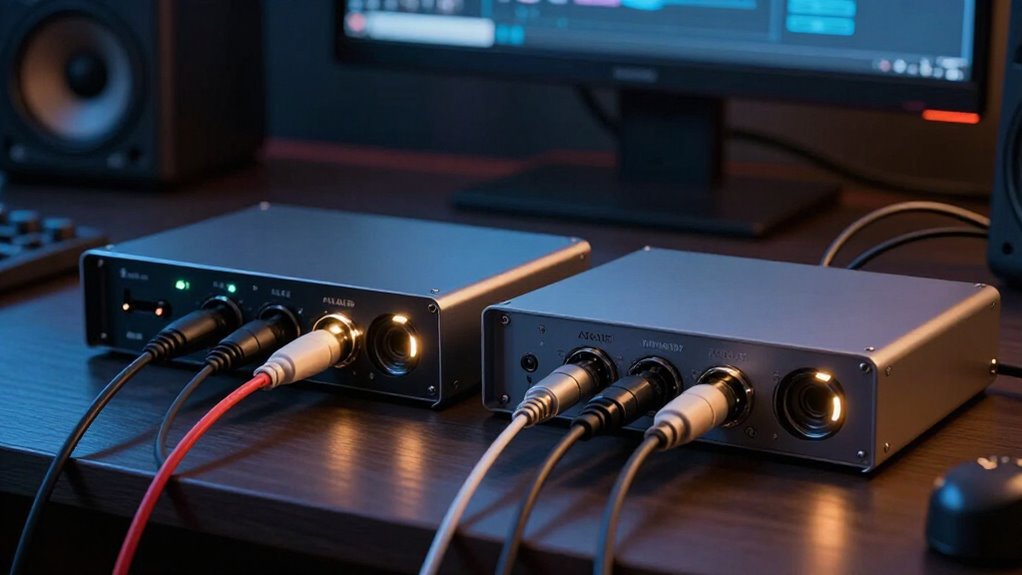
You can use two audio interfaces at once, but reliable results require more than matching sample rates.
On macOS, create an Aggregate Device, select a master clock, enable drift correction, and verify channel mapping.
For the most stable multichannel setup, connect a secondary interface’s ADAT output to the primary’s ADAT input and confirm clock lock.
Windows DAWs generally use one ASIO driver, so ADAT is preferable.
Next, you’ll see how to configure inputs, phantom power.
Dual-Interface Aggregate Device Setup
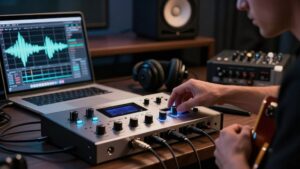
On macOS, you can combine two audio interfaces into one logical device by creating an Aggregate Device in Audio MIDI Setup: click the + button, choose Create Aggregate Device, then select both interfaces from the list. Rename the aggregate device so you can identify it quickly in recording software. In your DAW, choose that aggregate as both the input and output device, then confirm that its available channels match your session’s routing.
If you need system-wide audio, select the same aggregate as your Mac’s sound input, output, or both in Audio MIDI Setup. Open Configure Speakers and map the aggregate’s left and right speaker assignments to the hardware output channels you use. This lets you record through either interface and monitor through the outputs you designate.
Clock Drift and Sync
Even when both interfaces display the same sample rate, their independent internal clocks can run at slightly different speeds, causing recorded tracks to drift, click, drop out, or gain unwanted samples.
To prevent this, make one device the clock master and see that the other follows it. With ADAT, connect the secondary interface’s ADAT output to the main interface’s ADAT input. Set the secondary to Internal clock and the main unit to ADAT, then verify both report Locked. If they won’t lock, reverse the master relationship and save the working configuration before power cycling.
On macOS, assign one Aggregate Device member as master clock and enable drift correction for the others. It typically resamples streams, helping maintain alignment, but it doesn’t entirely replace hardware synchronization.
Recording 16 Drum Mics
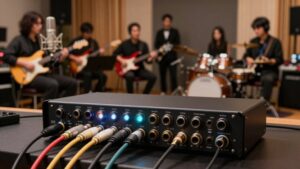
With the two interfaces locked to the same clock, a Clarett 8Pre USB and Saffire Pro 40 can provide 16 usable inputs for a drum session: 11 microphone channels plus the two line outputs from a Roland SPD-SX, with room for additional sources.
Run a TOSLINK cable from the Saffire ADAT output to the Clarett ADAT input at 48 kHz/24-bit. Set Saffire internal clock, Clarett ADAT clock, match sample rates, and verify locked status in both units.
| Source | Clarett input |
|---|---|
| Earthworks mics | Analogue 1–8 |
| SPD-SX/additional mics | ADAT 11–15 |
In Focusrite Control, enable ADAT 11–18; inputs 9–10 remain S/PDIF. Route SPD-SX through Saffire 1–2 and extra microphones through 3–5. This layout keeps your kit wiring on the Clarett and leaves three Saffire channels available.
USB, Thunderbolt, and ADAT Options
You can create a USB aggregate device or expand through Thunderbolt, but verify that the drivers and clocking support synchronized operation. For a more reliable digital link, connect the secondary interface’s ADAT optical output to the primary interface’s ADAT input for up to eight 24-bit/48 kHz channels. Set a shared sample rate, assign one clock master, and confirm both interfaces report lock.
USB Aggregate Device Setup
On macOS, you can combine USB or Thunderbolt interfaces into one CoreAudio device through Applications > Utilities > Audio MIDI Setup**: click +, choose Create Aggregate Device, select the interfaces, designate one as the Master Clock, and enable drift correction on non-master devices when available. Then select the Aggregate Device in your DAW and map its input and output channels** deliberately.
You can also assign it as macOS’s default input or output. Aggregation needs no physical clock cable, but CoreAudio may resample secondary hardware. Test recording and monitoring before a session: latency and reliability vary, and some systems exceed 50 ms. Match sample rates on every interface, minimize buffer size only after stability testing, and keep the clock master consistent during every recording session.
Thunderbolt Interface Expansion
When you need more physical inputs than one interface provides, ADAT expansion often offers a more stable alternative to combining separate USB or Thunderbolt devices in an Aggregate Device. You can use a rack interface as the main unit and route eight additional channels from a second interface’s ADAT output into its ADAT input at 48 kHz and 24-bit. Set both units to the same sample rate and synchronize their clocks: set the secondary interface to internal clock and the main interface to ADAT clock, then verify locked status on both.
Example: a Clarett 8Pre USB can serve as main interface; a FireWire Saffire Pro 40 adds eight inputs. A 2019 MacBook Pro needs a Thunderbolt 3-to-2 adapter, Thunderbolt-to-FireWire adapter, and FireWire 800-to-400 cable.
ADAT Optical Connections
ADAT optical provides a direct, driver-independent path for a secondary interface’s audio into a compatible main interface. You connect the secondary unit’s ADAT output to the primary unit’s ADAT input with a TOSLINK cable, so you don’t need to merge separate computer drivers. A single ADAT link carries up to eight 24-bit channels at 48 kHz. For example, route a Saffire Pro 40’s ADAT output into a Clarett 8Pre USB’s ADAT input.
Set both interfaces to the same sample rate. Clock the Clarett from ADAT, leave the Saffire on internal clock, and verify that each unit reports lock. The Clarett assigns ADAT to inputs 11–18; inputs 9–10 remain S/PDIF. You may still need USB, Thunderbolt, or adapters for configuration, but ADAT carries the audio.
Windows ASIO Driver Limits
On Windows, Cubase typically lets you select only one ASIO driver, so it won’t automatically combine separate audio interfaces. You can use tools such as ASIO4ALL, ASIO Link Pro, or Voicemeeter to route multiple devices, but they can add latency and reliability issues. For stable recording, sync both interfaces to a shared digital clock, such as ADAT, with one device acting as master.
Single ASIO Driver Restriction
Most Windows DAWs can address only one ASIO driver at a time, so Cubase, Studio One, and similar software usually can’t combine two separate audio interfaces directly. Once you select a driver in your DAW, that driver supplies the inputs, outputs, buffer settings, and timing reference.
The other interface’s channels remain outside the DAW’s ASIO device list. Matching both units to 44.1 or 48 kHz doesn’t guarantee sample-accurate operation: each interface normally runs from its own oscillator. Small clock differences accumulate during recording or playback, producing alignment errors and clicks, dropouts, or loss of stable audio. You thus shouldn’t assume that two USB interfaces will behave as one interface because Windows detects both devices. Your DAW needs a single driver that presents a synchronized path.
Multi-Interface Workarounds
Workarounds can create a shared routing path, but they don’t remove the underlying clock and driver limitations. Cubase generally accepts one ASIO device, so you can’t expect separate drivers to merge natively.
ASIO4ALL can expose multiple WDM-compatible devices through one driver. Match sample rates and test compatibility; it may not prevent drift. ASIO Link Pro can route multiple ASIO drivers between applications, but it doesn’t necessarily let one DAW use two drivers directly. Reported latency depends on routing and buffer configuration. Voicemeeter Banana, VB-Audio Matrix, and virtual cables offer routing, but they can add latency or require complex configuration. For physical fallback, connect second interface outputs to first interface inputs. ADAT carries up to eight channels at 48 kHz on compatible devices.
Clocking And Synchronization
Clocking determines whether two interfaces can keep recorded audio aligned over time. Matching their sample-rate settings isn’t enough: each interface has its own oscillator, and small errors accumulate. One device may run at 44,101 samples per second while another runs at 44,099, so tracks gradually drift apart.
Use a shared hardware clock whenever possible. With compatible units, connect word clock or ADAT and designate one interface as master. Set the other interface to receive its clock from that connection. On Windows, separate ASIO drivers generally don’t synchronize devices automatically. ASIO4ALL’s documentation doesn’t confirm drift correction either. Without synchronization, you can get clicks, dropouts, or added and missing samples, even when both devices show the same nominal rate. For reliable recordings, use one interface instead.
Mobile Podcasting With Four Guests
Four guests require four independent microphone inputs, so choose a portable interface with at least four preamps or expand a primary interface with a second unit. For reliability, use ADAT when both units support it. A TOSLINK cable from the secondary interface’s ADAT output to the main interface’s ADAT input carries up to eight 24-bit channels at 48 kHz. Set sample rates, configure the secondary unit as clock source, and set the main unit to ADAT clock.
If you’re on macOS and must use separate USB interfaces, build an Aggregate Device in Audio MIDI Setup. Choose one master clock and enable drift correction on the interface. On Windows, ASIO4ALL or Voicemeeter can merge devices, but test latency, channel mapping, and stability before leaving.
Phantom Power Doesn’t Combine
ADAT expands your available inputs, but it doesn’t share phantom power between interfaces. Each interface supplies 48V from its own microphone preamps, so an ADAT connection neither combines nor transfers phantom-power circuits. If your microphone plugs into the Clarett, enable phantom power on the Clarett’s relevant input bank: its switches control inputs 1–4 and 5–8. If the microphone plugs into the Saffire, use the Saffire’s corresponding group switch instead.
Before you engage 48V, confirm that the connected microphone requires it and consult the interface manual. This matters when several inputs share one phantom-power switch: enabling the group applies power to every input in that bank. Check all connected devices, particularly ribbon microphones or equipment with unbalanced outputs, before switching it on for safe operation.
Aggregate Input Numbers Can Shift
Once you’ve set phantom power at the interface hosting the microphone, select the correct aggregate input in Logic. An Aggregate Device combines every available input into one numbered list, so its channel positions don’t necessarily match either interface’s standalone labels.
- Clarett analogue inputs occupy Logic channels 1–8.
- Clarett S/PDIF occupies channels 9–10, even when unused.
- ADAT-fed Saffire signals as a result begin at channel 11.
- Input order can change after aggregate-device edits.
In this Clarett-and-Saffire configuration, don’t choose a Saffire track by its original Saffire number. Instead, map it against Logic’s aggregate input list. Inspect that list whenever you create, reorder, enable, or modify the aggregate device. The displayed order is authoritative: it tells you which physical source each track actually receives from the selected channel assignment.
Test With a Loopback Track
To verify that the two interfaces share audio and clocking reliably, create a loopback track: route a known signal from an output on one interface into an input on the other, then record it in your DAW. For ADAT, connect the secondary interface’s ADAT output to the master interface’s ADAT input, set both to the same sample rate, select the secondary as clock source, and set the master to ADAT. Confirm that both units report locked clock before recording.
Play a steady tone or click, then inspect the captured waveform while listening for clicks, dropouts, or timing drift. These symptoms usually indicate synchronization trouble. On macOS, build an Aggregate Device, designate one interface as master clock, and enable drift correction on the other.
Conclusion
You can run two interfaces together, but you’ll get the best results when you treat clocking, drivers, and routing as first-class requirements. On macOS, build an Aggregate Device and verify channel order; on Windows, prefer one ASIO interface or expand it through ADAT. For large drum sessions, use digital expansion and a shared clock. Don’t assume phantom power, gain control, or latency will merge. Before recording, test every input first with a loopback signal track.