What Is a DAW Controller? Faders, Transport and Mixing Without a Mouse
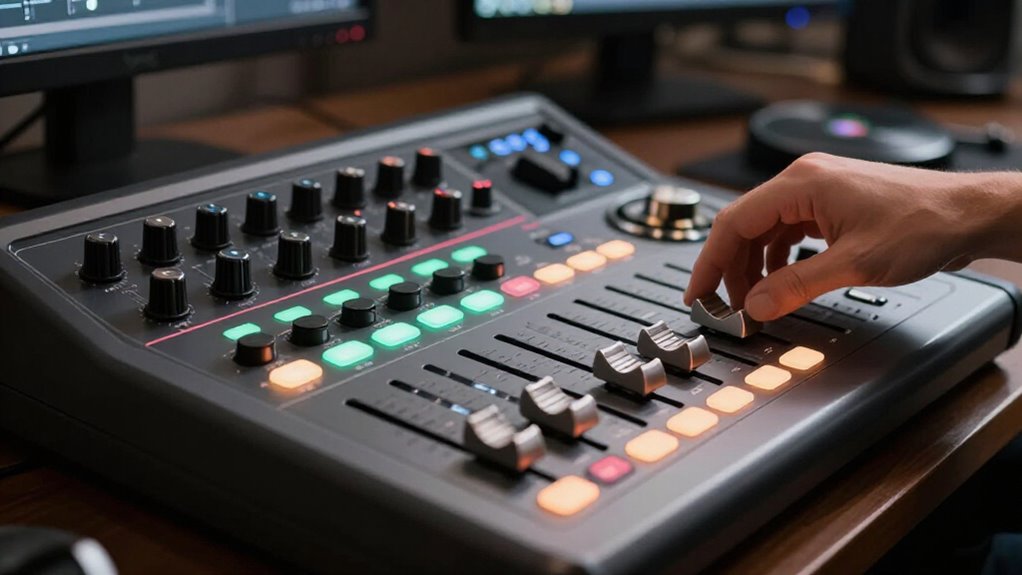
A DAW controller lets you mix software with physical faders, knobs, and transport keys instead of reaching for a mouse.
Motorized, touch-sensitive faders mirror track levels and automation, so you can ride moves during playback, then release them to return to programmed values.
Play, stop, record, banking, mute, and solo stay under your hands.
Compatibility matters: MCU/HUI handles core control, while EUCON can add richer feedback.
Next, you’ll see how to choose the right surface.
Motorized Faders and Transport
Motorized faders keep your controller aligned with the DAW’s current mix, moving to each track’s stored level as you switch channels, recall sessions, or play automation. You get immediate visual snap-to feedback, so you don’t hunt for the correct position with a mouse.
During playback or recording, you can ride levels in real time while the faders reflect existing automation. Touch-sensitive faders let your contact engage Touch, Write, Latch, or Trim behavior, then return to the DAW’s programmed value when released. Common 100 mm long-throw faders provide finer control for precise moves.
Dedicated Play, Stop, Record, Fast Forward, and Rewind controls keep transport under your hand, while scrolling and marker buttons help you move through a session without interrupting your mixing workflow during passes.
Mackie Control Protocol Compatibility
Those faders and transport controls only work as smoothly as the protocol linking the surface to your DAW. Mackie Control (MCU) gives software a common MIDI-based language for translating faders, encoders, and buttons into standard DAW commands. When you choose an MCU-compatible controller, you’ll usually find the easiest setup in DAWs with explicit MCU support, including Logic and Cubase, or HUI-oriented Pro Tools-style setups.
Many surfaces, including the Behringer X-Touch and SSL UF8, offer MCU/HUI modes, so you select the matching control-surface option in your DAW and configure its MIDI input and output ports. Check the manufacturer’s DAW profile before buying: MCU/HUI covers core mixing control, but it doesn’t provide advanced automation modes or high-resolution metering available through protocols like Avid’s EUCON when needed.
Writing Automation Passes by Hand
When a mix needs movement that feels musical rather than drawn, you can write automation by riding a controller fader during playback. Enable the appropriate automation mode in your DAW: Touch writes only while you hold the touch-sensitive fader; Latch continues after release, and Write overwrites existing data across the pass. Read lets you audition the result, while Trim, where available, offsets existing moves.
Use dedicated automation and transport controls to arm the pass, punch in at the right bar, and start playback without reaching for a mouse. A motorized 100 mm fader follows the DAW’s current level, so you can catch it smoothly and make continuous level changes. After recording, inspect the lane, clean up only obvious mistakes, and keep your performance intact.
Single-Fader vs Eight-Fader Banks
Choose a single 100 mm motorized fader when you prefer focused, one-channel-at-a-time mixing without bank switching. Choose eight motorized faders when you need to balance, ride, and automate adjacent channels simultaneously, accepting bank navigation for larger sessions.
Match the controller to your desk space, budget, current channel count, and whether you’ll expand beyond eight channels.
Hands-On Mixing Workflow
A single-fader controller keeps you locked to the selected DAW channel, so you can ride a motorized 100 mm fader, reduce mouse use, and write automation without spreading your attention across the session. You follow DAW selection, touch the fader, and record level moves in real time.
| Workflow | What you do |
|---|---|
| Single fader | Select one track; ride its current DAW value. |
| Eight-fader bank | Balance eight channels, then bank to the next group. |
| 16-fader surface | Cover 32 tracks with one nudge or 48 with two. |
Touch-sensitive motors snap each control to its assigned track value, letting you mix by feel instead of hunting onscreen. After bank switches, verify names on scribble strips or LEDs before you make your next balance decision.
Space And Budget
Space and budget set the practical limit between a single selected-channel fader and an eight-fader bank. A compact FaderPort-style unit occupies little desk space and uses your DAW’s selected-channel focus: select a track, and its motorized fader follows. That keeps cost down, but you’ll navigate or rely on auto-follow more often while balancing a mix.
An eight-fader surface puts eight channels, dedicated faders, and usually scribble strips under your hands simultaneously. It needs more desk width and raises the price because motorized faders add substantial hardware cost. Budget models can sit near the sub-$500 mark, while premium units cost much more. Choose one fader when desk space and spending are tight; choose eight when faster, parallel level adjustments matter more to you than compactness.
Channel Count And Expansion
Channel count determines how much of your mix you can touch at once. A single-fader controller, such as PreSonus FaderPort, follows your selected DAW channel: its motorized fader recalls that track’s level, so you can write automation without grabbing a mouse. It suits workflows, but you can’t ride sources simultaneously.
An eight-fader surface, such as SSL UF8 or FaderPort 8, lets you balance eight tracks and adjust assigned parameters together. Banks or nudges move those faders across sessions: 16 faders reach 32 tracks with one nudge or 48 with two.
For more channels, expand: chain UF8 units for 16 faders, or add three Icon Platform X+ expanders to a Platform M+ for 32. Limited displays can obscure levels and slow automation in practice.
Plugin Control Requirements
For efficient plugin work, you need enough high-resolution encoders to adjust multiple parameters without constant banking. Check that your DAW and controller provide reliable mapping plus clear feedback through displays, scribble strips, or LED rings.
Confirm protocol compatibility: EUCON and native integrations typically offer deeper control than MIDI-based MCU/HUI.
Encoder Count And Resolution
Encoder count and effective resolution determine how precisely you can turn a physical knob into DAW parameter changes. For plugin work, this controls whether an EQ frequency sweep, filter resonance move, pan adjustment, or send change feels smooth or jumps in coarse increments. Higher-resolution encoders, often delivering several thousand counts per revolution, send more incremental changes as you turn them. That gives you finer automation moves and better tactile control over sensitive, non-linear parameters.
Check both the encoder hardware and the control protocol your setup uses. A precise encoder can’t deliver its full benefit if the protocol or DAW implementation accepts limited parameter data. MCU and HUI may provide less detail than EUCON-based systems, while EUCON can carry richer controller data. Faders handle level rides; encoder resolution matters for controlled knob-style adjustments.
Plugin Mapping And Displays
Effective plugin control depends on more than available knobs: your controller and DAW must share a mapping method that identifies the selected plugin and its parameters. Without that link, you’re limited to generic MIDI assignments, so knobs may not follow your insert or label themselves correctly. Check whether the controller can track the selected plugin, expose parameter pages, and display parameter names and values.
Scribble strips or screens matter on motorized-fader surfaces: a fader’s position can’t always show automation accurately in pass-through modes. Richer integrations can supply metering, feedback, and automatic banking, reducing navigation during mixing.
Native or VST-based host integration can provide dependable control over generic mappings; it may require an instance on every channel and add CPU overhead. Test plugins first.
DAW Protocol Compatibility
Those plugin pages and displays only work as well as the protocol linking your controller to the DAW. MCU/HUI gives you broad compatibility across Cubase, Logic, and Pro Tools, but its parameter feedback and metering are limited. EUCON, Avid’s Ethernet-based protocol, can deliver finer-resolution faders, detailed meters, automation access, and richer plug-in names and parameters, especially in Pro Tools. You’ll need to check each DAW’s EUCON implementation because adapter support and features vary.
Native controller software can go deeper still, exposing plug-in controls through DAW or VST integration. With workflows such as SSL UC1-style setups, you may need to insert or fetch the plug-in on each channel before controls follow it. Before buying, verify that target DAW exposes parameters, automation modes, and high-detail metering.
Balancing 32-Track Drum Mixes
When a drum session expands to 32 tracks, a DAW controller keeps balancing tactile and organized: use faders for level, pan controls for placement, and dedicated mute/solo keys to compare close mics, overheads, and rooms without breaking focus. Bank a 16-fader surface to reach the second layer, grouping kick, snare, and toms separately from overheads and rooms. Scribble strips and meter LEDs confirm assignments, while touch-sensitive motorized faders recall levels for repeatable rides and automation.
| Control | Task | Result |
|---|---|---|
| Fader bank | Balance close mics | Fast level decisions |
| Solo keys | Check overhead phase | Cleaner kit perspective |
Use transport and navigation to loop a fill, then refine room level against snare presence. You’ll move through comparisons quickly, keeping decisions tied to song rather than menu searching.
Noisy Faders in Quiet Rooms
Tactile control can create an acoustic trade-off in a quiet recording space: motorized faders hum, tick, or whirr as they chase automation, recall positions, or move during bank changes.
That noise can reach a nearby vocal microphone, especially during work or quiet takes. Controllers with 100 mm motorized faders concentrate several DC motors and gear trains in one place. Keep the surface farther from open mics, and disable motor catch-up while you edit when your workflow permits.
Re-enable movement for automation passes and recall checks, when visual confirmation matters. If snap-to motion during playback or banking still interrupts tracking, choose non-motorized faders or move the controller to a separate booth. You’ll retain hands-on transport and mixing while protecting low-level recordings from mechanical pickup.
Assuming USB Means DAW Support
USB tells you how a controller connects, not whether your DAW can control it. Before buying, confirm that both devices share a control protocol. USB may carry standard MIDI, MCU/HUI emulation, or a vendor-specific method; each delivers different integration.
- Check your DAW’s supported surfaces and verify the controller’s MCU, HUI, or EUCON mode.
- Confirm bidirectional operation. Your faders need automation and parameter data to move with track levels, not outgoing MIDI messages.
- Identify restrictions. A proprietary USB implementation, native plug-in workflow, or required EUCON adapter may limit operation to selected DAWs.
MCU/HUI modes often work in Logic, Cubase, and platforms, despite their Mackie and Pro Tools roots. Still, don’t treat USB as universal compatibility: test transport, banking, plug-in mapping, and motorized-fader feedback in your DAW.
Measure Your Desk Depth
Measure usable desk depth from the front edge to the rear clearance, then compare it with the controller’s footprint, not just its listed width. Desk depth determines whether unit sits below monitors without pushing you forward or blocking sightlines. Record available inches or centimetres, then check full chassis dimensions. Rack-style modules and compact eight-fader surfaces can vary by several inches. If you’ll chain two eight-channel units into a 16-fader layout, allow extra length for scribble strips and encoder sections so nothing overhangs.
Reserve rear clearance for USB, Ethernet, and power leads; EUCON requires wired Ethernet, while motorized faders need stable connections. Finally, test reach from your mix position: transport controls and jog wheels should sit within easy arm distance, reducing hand travel during editing and mixing.
Conclusion
A DAW controller gives you direct, repeatable control over levels, transport, automation, and plug-ins, so you can mix with your ears instead of chasing a cursor. Choose motorized faders if you’ll recall sessions and write passes, verify Mackie Control or native integration, and match bank size to your track counts.
Test fader noise, confirm plug-in mapping, don’t assume USB compatibility, and measure desk depth before you buy. Your workflow should drive the entire controller choice.